Your photo server works with the free Immich app for iPhone and Android. New photos go to your server by themselves. New here? Start with Start your photo server.
1. Install the app and connect it
- Install Immich from the App Store or Google Play.
- As Server URL, type the address from the Your photo server card in the panel, for example
http://203.0.113.10:25600. The card’s Copy button copies it. - Sign in with your Immich email and password.
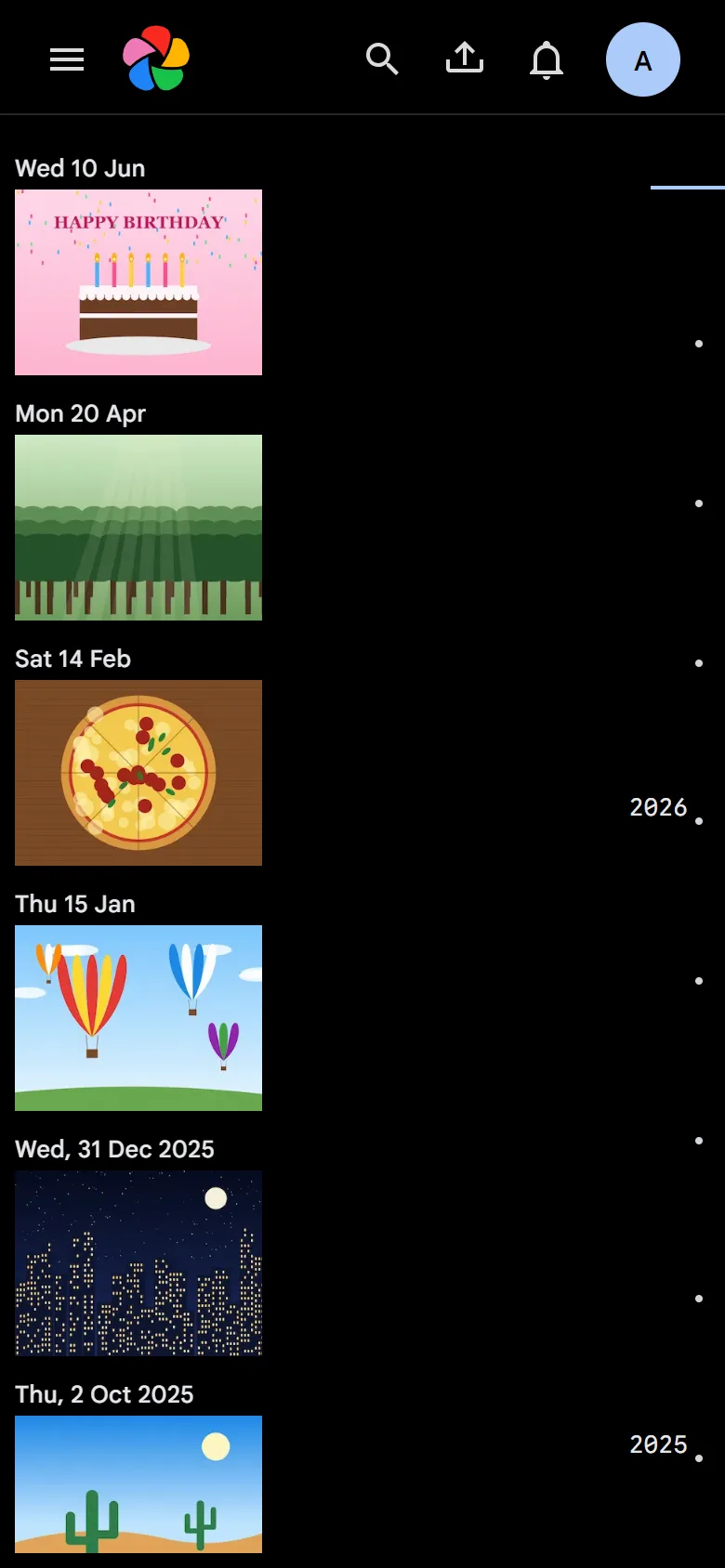
2. Turn on backup
In the app, tap the cloud icon at the top, choose the albums to back up (usually Recents or Camera) and turn backup on. The first backup of a full phone can take hours: keep the app open on Wi-Fi the first time. After that, new photos upload by themselves.
3. Add your family
Each person gets their own account and private library. In Immich, as the admin: Administration → Users → Create user. To see each other’s photos, use shared albums, or Account Settings → Partner sharing.
Forgot your Immich password?
For the admin account (the first one you made), use the panel. Open your photo server, and on the console page click Forgot your Immich password? under the address. Type a new password and press Change password.
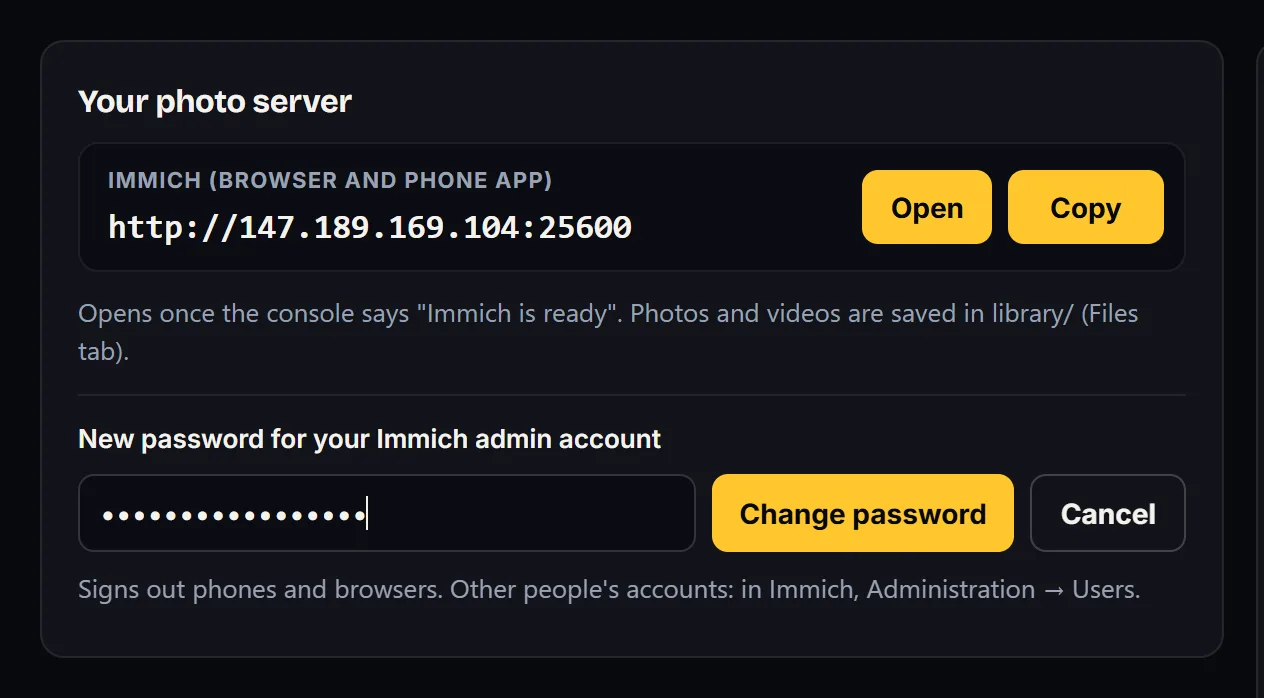
Phones and browsers are signed out: sign in again with the new password. The password never shows in the console.
- Other people’s accounts: the admin resets them in Immich, under Administration → Users.
- Change it while signed in: your picture (top right) → Account Settings → Password.
Phone backup stopped?
- Check the server is running: the panel shows it as running and the console says Immich is ready.
- Check the address: the app’s Server URL must match the address on the panel card.
- Big videos: the app may wait for Wi-Fi before uploading them.
Still stuck? Open a ticket and pick your photo server.