The client area (billing) and the game panel each have their own sign-in. This guide signs you out of both, on every device, in about a minute.
Sign out of the client area
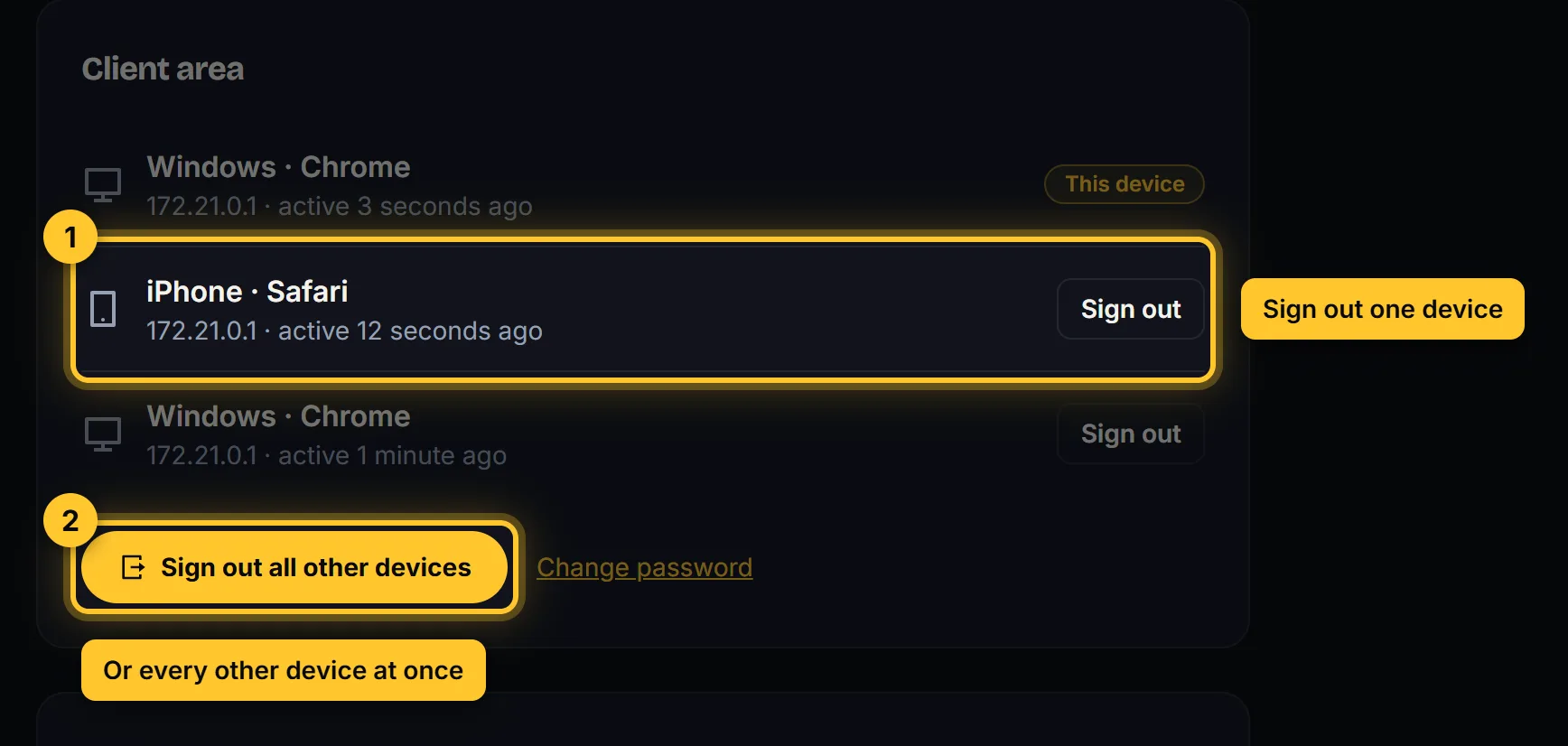
- In the client area, open Account → Signed-in devices.
- You see every browser that is signed in, with its IP address and when it was last used. The one you are using says This device.
- Click Sign out next to a device, or Sign out all other devices for all of them. The next click on that device goes to the login page.
Sign out of the game panel
Scroll down on the same Signed-in devices page to Game panel. You see one of these:
- A password box: type the password you use for the client area and click Sign out of the game panel everywhere. Every device is signed out of the panel, this one too. Your password stays the same.
- Two steps: click Open the game panel, then your account (top right). Under Update Password set a new password. Every other device is signed out of the panel right away.
Think someone knows your password?
Signing out doesn’t stop someone who can sign in again. Also do this:
- New password: client area → Account → Security → Change password. Then sign in to the game panel with the new one. If the old password still works there, change it there too under Update Password.
- Two-factor sign-in: client area → Security → Enable two-factor authentication. Game panel → your account → Enable Two-Step. Without the code from your phone, a password alone is not enough.
Check the rest of the game panel
Open the game panel and click your account (top right):
- Activity: recent sign-ins and changes, with their IP addresses.
- API Credentials: delete any key you don’t know. A key keeps working after a sign-out.
- SSH Keys: delete any key you don’t know. A key opens SFTP without a password.
- SFTP uses your game panel password, so a new password also stops old SFTP logins.
People you added to a server keep their own access: open the server → More → Users and remove anyone who shouldn’t be there.
It doesn’t work?
- A device still shows up: reload the page. A signed-out device is sent to the login page on its next click.
- “Wrong password” on the game panel button: use your client area password, the one you signed in with here.
- Locked out yourself? Click Forgot your password? on the login page.
- Still stuck? Open a ticket and tell us what you see.
On a shared or school computer, sign out when you are done, or use a private window. Next: Upgrade or cancel your service.