Make a backup first (Backups → Create backup). Updating to a newer version is safe. Going back to an older version can break your world.
Change it from the Versions tab
- In the panel, open your server and click Versions in the server menu. On a phone, swipe the menu sideways to find it.
- At the top you see what runs now, for example *Currently running Paper* with the Minecraft version and build.
- Pick the server type you want: Paper, Purpur, Fabric, Forge, NeoForge, Vanilla and more.
- Pick the Minecraft version. Snapshots are hidden; turn on Show Snapshot Versions if you want them.
- In the window that opens, keep the newest stable Build and turn on Accept EULA (it accepts the Minecraft EULA for you).
- Leave Wipe Server Files off to keep your world, plugins and settings. Turn it on only for a completely fresh server: it deletes everything and can’t be undone.
- Click Install. The server stops, the new version is installed, and the right Java version is picked for you.
- Go to Console and click Start. The first start after a change takes a bit longer.
Plugins and mods are made for specific versions. After a big update, check that each one has a version for your new Minecraft version. You can update them from the Plugins tab.
Switching between plugins and mods
Paper and Purpur run plugins. Fabric, Forge and NeoForge run mods. They don’t mix: when you switch between them, your world stays but your plugins or mods don’t carry over. Not sure which to pick? Read Paper vs Purpur vs Fabric vs Forge.
Want to run a modpack? Follow Install a modpack.
The server doesn’t start after the change?
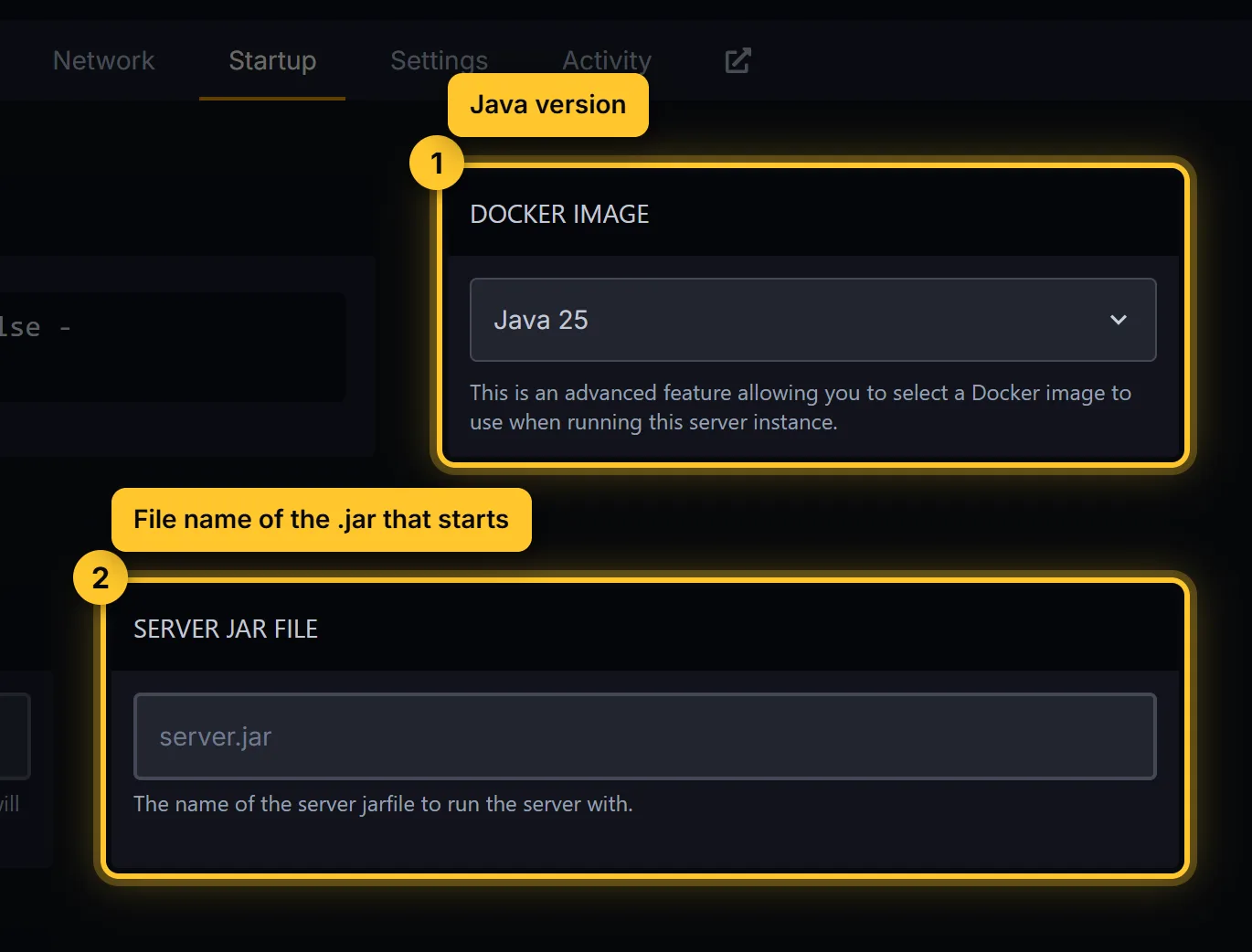
The console shows UnsupportedClassVersionError? The Java version doesn’t match. Open Startup, choose another Docker Image, and start again:
- Minecraft 26.1 and newer: Java 25
- Minecraft 1.20.5 to 1.21.x: Java 21
- Minecraft 1.18 to 1.20.4: Java 17
- Minecraft 1.16.5 and older: Java 8 or 11
A plugin or mod crashes it? Remove the ones you added last, one by one, from Files. Still stuck? Restore your backup (Backups → ⋯ → Restore) and open a ticket. We fix it with you.
Upload your own server jar
Need a jar that isn’t in the list? Upload it yourself:
- Stop the server.
- Open Files and upload the
.jarto the main folder (not inside a subfolder). - Open Startup and set Server Jar File to the exact file name, for example
custom.jar. - Start the server.